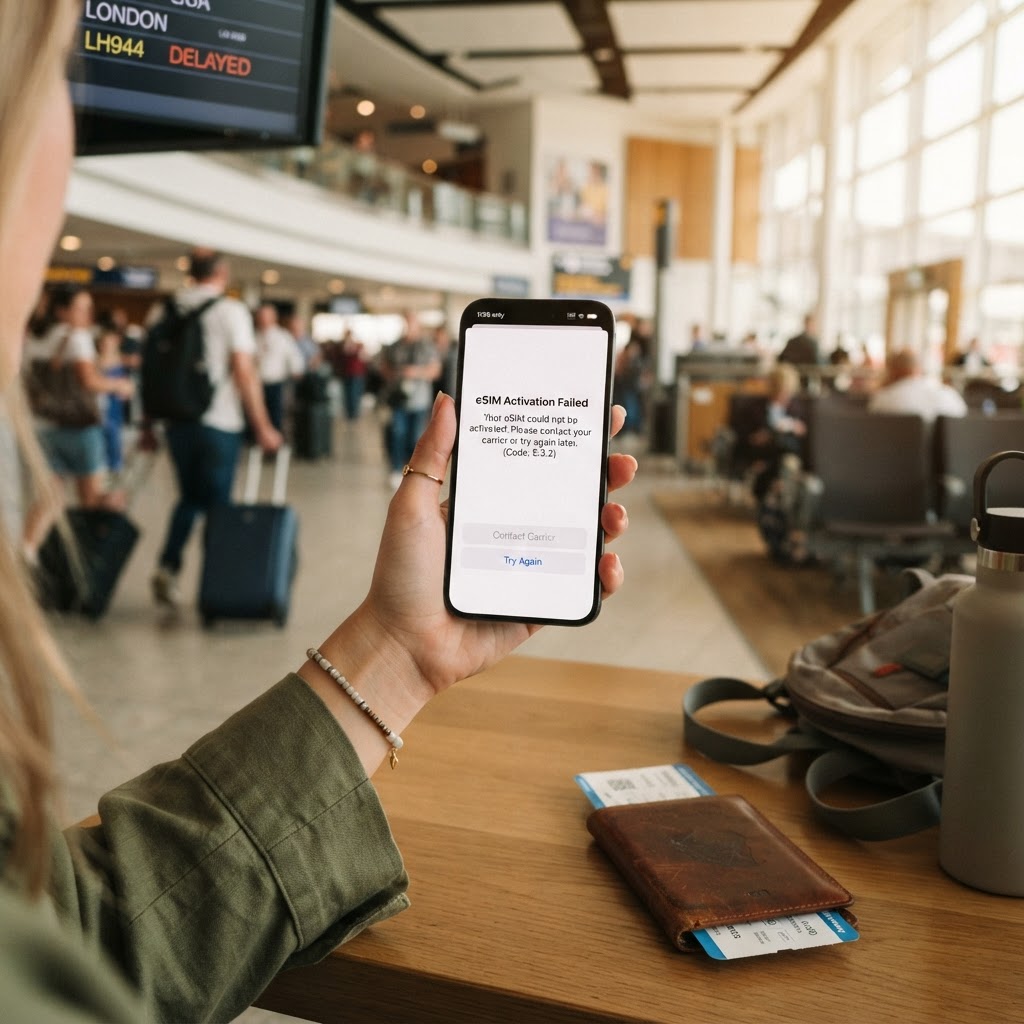
Common reasons eSIM activation fails
eSIM activation can fail for several reasons. The most common are:
- Weak or no internet connection during installation: The activation process needs an internet connection (usually Wi-Fi) to download the eSIM profile.
- Expired or already-used activation code: Some activation codes are single-use. If the code was already used or has expired, activation will fail.
- Incorrect QR code or manual activation code: A typo in a manual activation code or a damaged QR code can cause failure.
- Phone not eSIM compatible: Not all phones support eSIM. Check if your phone is eSIM compatible before trying again.
- Carrier lock: Some phones are locked to a specific carrier and cannot accept eSIM profiles from other providers.
Step 1: Check your internet connection
The most common cause of activation failure is a weak internet connection during installation. The eSIM profile needs to be downloaded, which requires a stable connection.
- Connect to a reliable Wi-Fi network
- Make sure you are not on a captive portal (hotel/airport Wi-Fi that requires login)
- Try a different Wi-Fi network if the first one does not work
Step 2: Verify the activation code or QR code
Check that the activation code or QR code is correct:
- If using a QR code, make sure it is clearly visible and not damaged
- If using a manual activation code (LPA format), check for typos — every character matters
- Make sure the code has not already been used — some codes are single-use
Step 3: Restart your phone and try again
After verifying your internet and code, restart your phone and attempt the activation again:
- Restart your phone
- Connect to Wi-Fi
- Go to your eSIM settings and try adding the eSIM again
- Scan the QR code or enter the manual activation code
Step 4: Check if your phone is eSIM compatible
Not all phones support eSIM. If activation keeps failing, verify your phone supports eSIM:
- iPhone: iPhone XS, XR and newer support eSIM (iPhone 13+ in the US supports dual eSIM)
- Samsung: Most Galaxy S series from S20 and newer, Galaxy Z Fold/Flip series
- Google Pixel: Pixel 3 and newer (Pixel 2 in some regions)
Check our eSIM compatibility guide for a full list.
Important: Do not delete the eSIM profile
If activation has partially completed, do not delete the eSIM profile from your phone. Deleting it may require you to get a new activation code from your provider, which can take time. Instead, try re-activating or contact support for assistance.
Only delete the eSIM if your provider's support team specifically instructs you to and confirms you can re-install it.
Step 5: Contact support
If you have tried all the steps above and activation still fails, contact your eSIM provider's support. Provide:
- Your phone model and operating system version
- The error message you see (if any)
- Whether you are using a QR code or manual activation code
- Steps you have already tried
BubuTel's Smart Setup assistant can help identify the issue and guide you through the activation process.