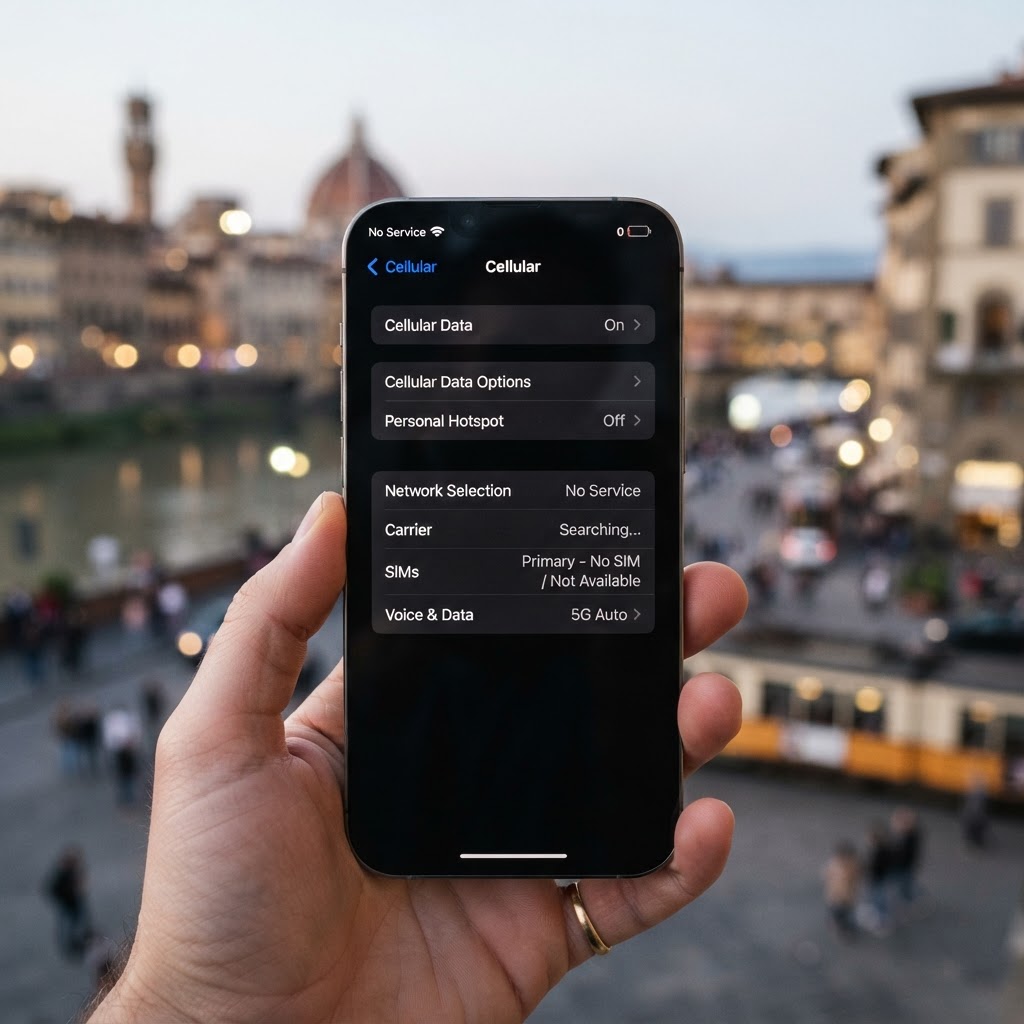
Why your iPhone eSIM shows no service
When an eSIM shows no service on iPhone, it usually means the phone is not connecting to a cellular network. The most common causes are the wrong SIM line being selected, data roaming being off, or the phone needing a restart after installation.
Step 1: Check the correct line is selected for data
If your iPhone has both a physical SIM and an eSIM, it may be using the wrong line for data. This is the single most common reason for no service on a travel eSIM.
- Go to Settings → Cellular
- Tap Cellular Data
- Check which line is selected — make sure your travel eSIM is selected, not your home SIM
- Consider turning off your home SIM line to prevent roaming charges from your home carrier
Step 2: Enable data roaming for the eSIM
Your travel eSIM needs data roaming enabled to connect to foreign networks. This is safe for your travel eSIM — it connects to the included networks.
- Go to Settings → Cellular → Cellular Data Options
- Toggle Data Roaming ON
Keep data roaming OFF for your home SIM line to avoid charges from your home carrier.
See also: Should data roaming be on with an eSIM?
Step 3: Restart your iPhone
After changing SIM or roaming settings, restart your iPhone. This forces the phone to re-search for and connect to available networks. A restart resolves many no-service issues.
Step 4: Try manual network selection
If your iPhone is not connecting automatically, try selecting a network manually:
- Go to Settings → Cellular → Network Selection
- Turn off Automatic
- Wait for the list of available networks to appear
- Select a local carrier
If you see a list of networks but cannot connect to any, the issue may be with the eSIM activation rather than network selection.
Step 5: Check for iOS updates
Some eSIM connectivity issues are caused by iOS bugs that are fixed in updates. Check for and install any available iOS updates:
- Go to Settings → General → Software Update
- Install any available update
- Restart your iPhone after updating
Step 6: Verify the eSIM is activated
Check whether your eSIM shows as active in Settings → Cellular. If it shows as inactive or pending, it may still be activating. Wait 5–10 minutes and restart your iPhone.
See also: eSIM activation failed: what to do
Step 7: Check airplane mode
Make sure Airplane Mode is off. If you used Airplane Mode during your flight, toggle it off and wait 30 seconds for your phone to reconnect. Sometimes toggling Airplane Mode on and off can force a fresh network search.
Do not delete your eSIM
If your eSIM shows no service, do not delete it from your iPhone as a troubleshooting step. Deleting an installed eSIM may require re-provisioning — you may need a new activation code. Only delete the eSIM if support instructs you to and you can re-install it.
When to contact support
If you have tried all the steps above and your iPhone eSIM still shows no service, contact your eSIM provider. Provide your iPhone model, iOS version, what you see in Settings → Cellular, and the steps you have already tried.
BubuTel's Smart Setup assistant can guide you through these steps interactively.